

QR codes are the easiest way to bridge the gap between a happy in-person customer and a Google review. Here's exactly how to set one up and where to use it.
The biggest barrier to getting Google reviews is friction. A customer has to remember to leave a review, find your business on Google, and navigate to the review form — all after leaving your location. QR codes remove every single one of those steps.
How a Google Review QR Code Works
A Google Review QR code is simply a scannable image that opens your Google Business profile's review page directly on a customer's phone. When they scan it, they land on a page pre-loaded with the review form — one tap and they're writing a review.
Step-by-Step: How to Create Your Review QR Code
- 1Go to Google Maps and search for your business.
- 2Click on your business listing, then click the "Write a review" button.
- 3Copy the URL from your browser's address bar — this is your direct review link.
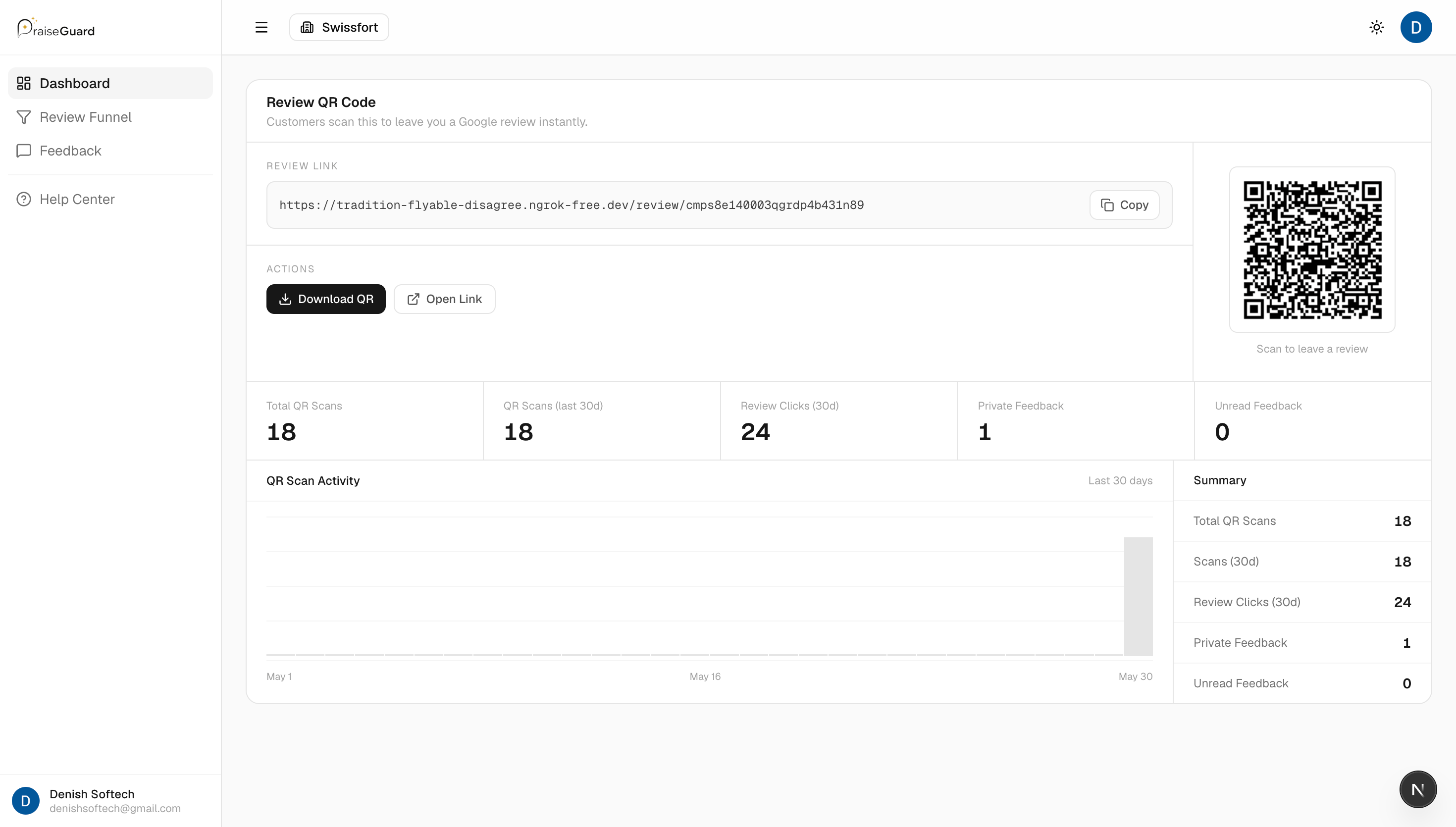
- 4Use a QR code generator (or PraiseGuard) to convert that link into a QR code.
- 5Download your QR code as a high-resolution PNG or SVG.
- 6Print it on table cards, counter signage, receipts, packaging, or wall signs.
Using PraiseGuard for a Smarter Review QR Code
A standard QR code sends everyone straight to Google. A PraiseGuard smart QR code first shows a branded landing page that asks: "How was your experience?" Happy customers (4–5 stars) are directed to Google. Unhappy customers are routed to a private feedback form — protecting your public rating while still capturing valuable feedback.
QR Code Placement Checklist
- Counter/checkout area — catches customers right after payment
- Tables and booths — gives diners something to do while waiting for the check
- Product packaging — reaches customers after they've experienced your product at home
- Printed receipts and invoices — travels home with the customer
- Email signature and SMS follow-ups — digital touchpoints post-visit
- Thank-you cards in delivery boxes
Pro Tip
Always pair your QR code with a short call-to-action like "Loved your visit? Leave us a quick review!" — it increases scan rates by up to 40%.
Topics
